Block Apps [iOS/Android]
With one sec, you can't only intervene apps, you can also completely block apps (and websites!) when needed.

Blocking on iPhone
There are different ways to block apps on iPhone. This tutorial focuses on
Manual Block
Block via Control Center/Lock Screen or a Widget
Block apps via Shortcut
For the other ways, please follow these links with regarding tutorials.
Manual Block
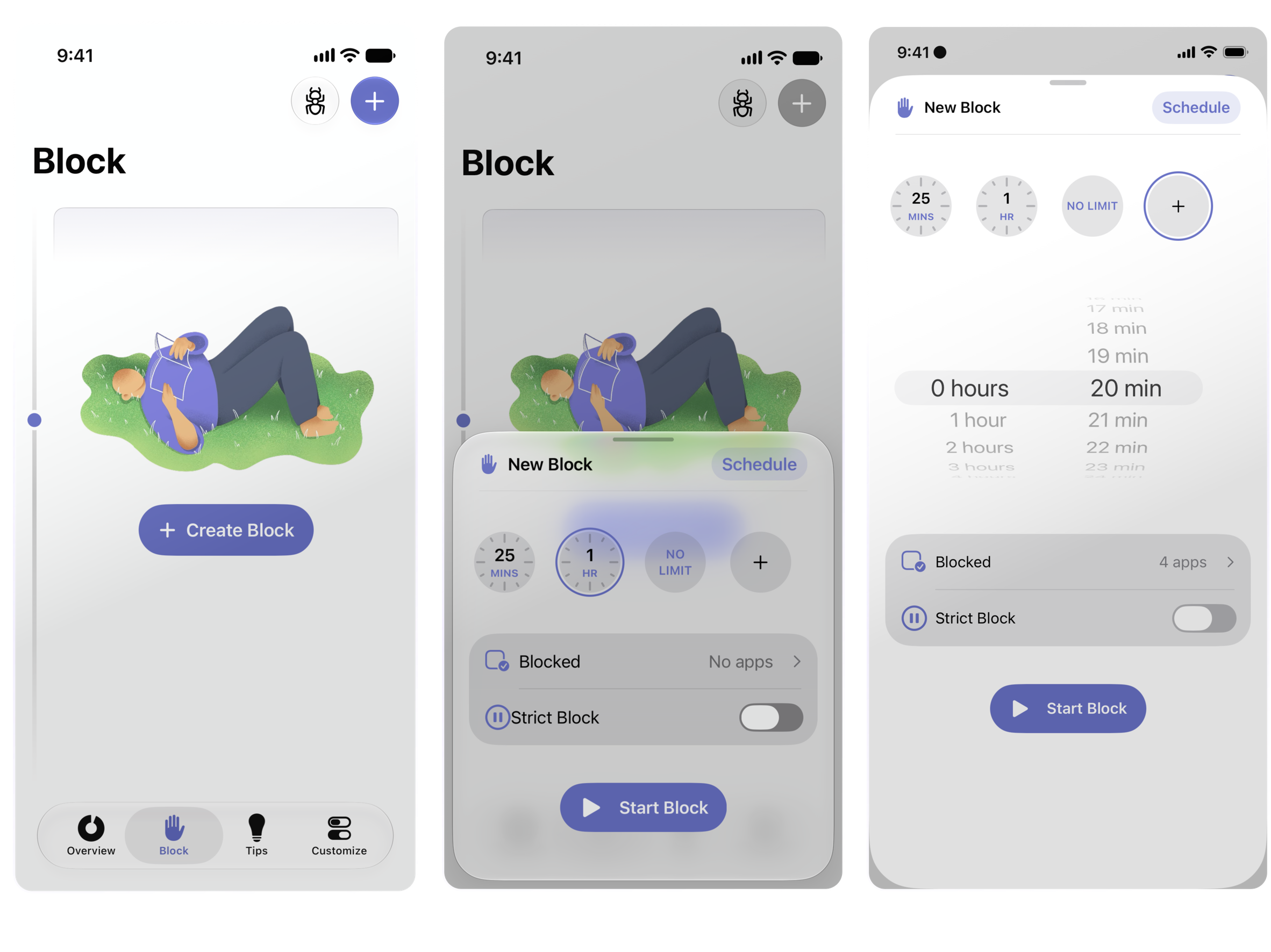
To start a Manual block, open one sec
and navigate to the Block tab.
Tap the + in the upper right corner.
Choose how long the block should be from the provided options (tap the + for a customizable time frame)
Choose if you want to Block Selected Apps/Websites/Categories or Block All (with selected exemptions)
Select by toggling on or off if this should be a strict block or normal block: If strict mode is enabled you can't pause or leave the ongoing block before the time is over.
Press Start Block.
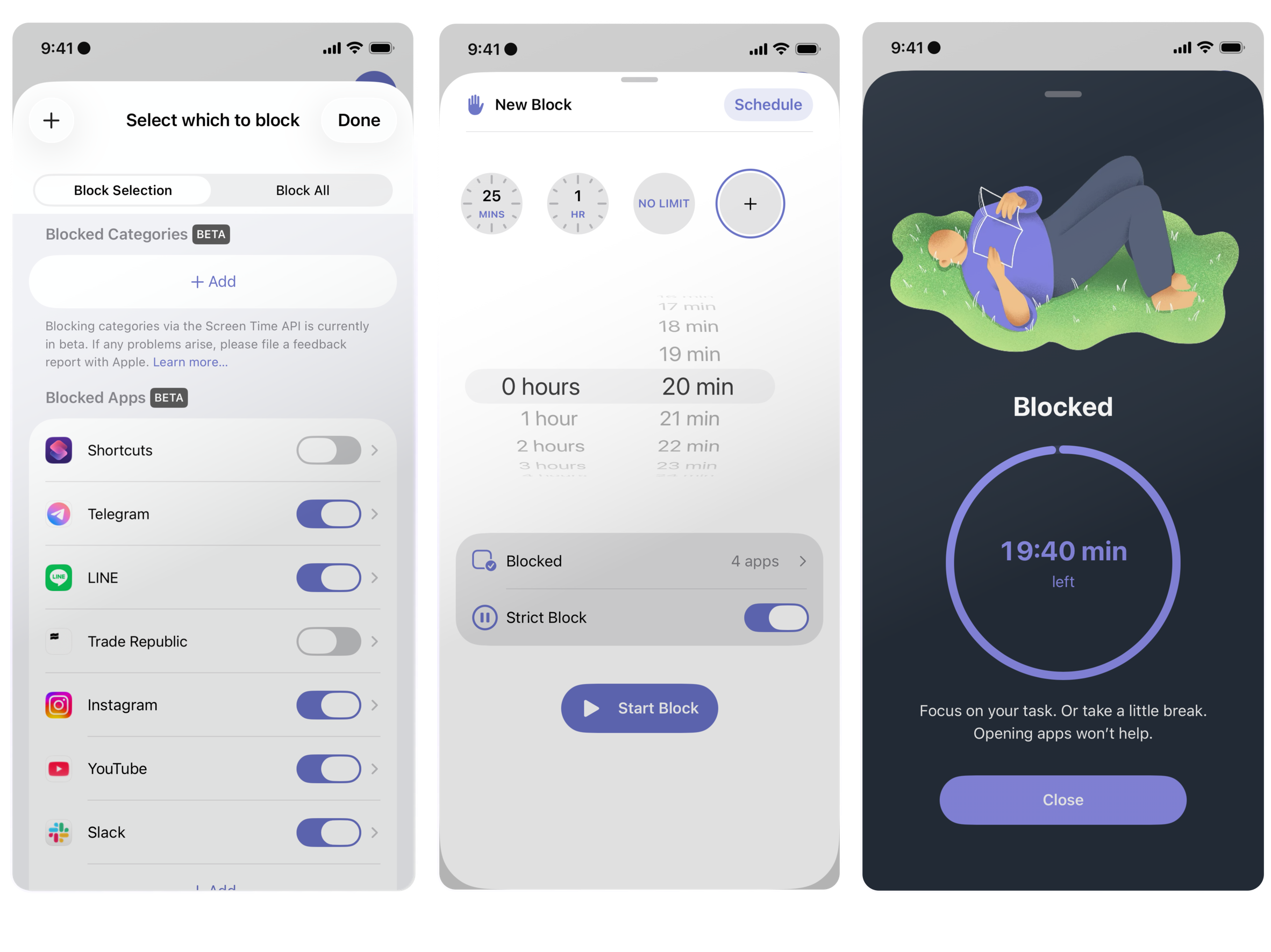
Optional: You can also create a Recurring Block from the Block Tab by tapping Schedule. (Scheduled Block)
Quick-start a Block from a Widget or Control Center
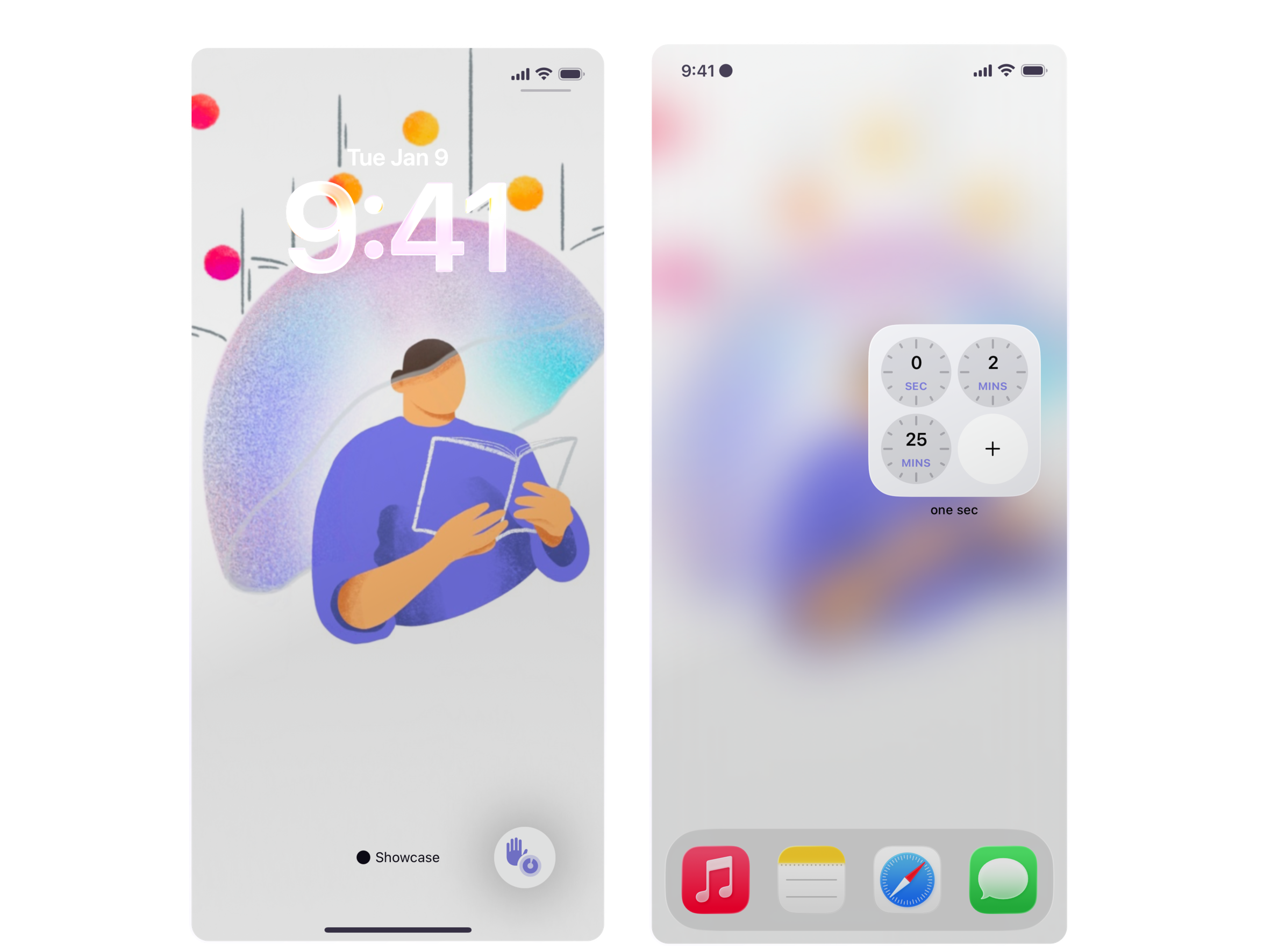
If you want to start a manual block without opening one sec, you can also start a block directly from your Home Screen, Control Center or Lock Screen with:
• our homescreen widget
• one sec's control center toggle
To add the widget to your long-press your Home Screen, tap Edit and "Add Widget" and search for the one sec widget and place it on your homescreen.
To enable the control center toggle, long-press your Lock Screen / Control Center to add the one sec block toggle.
When you tap the widget or the control center toggle, the default selection of apps, websites, and categories on the Block Tab in one sec will be blocked.
Block Overview
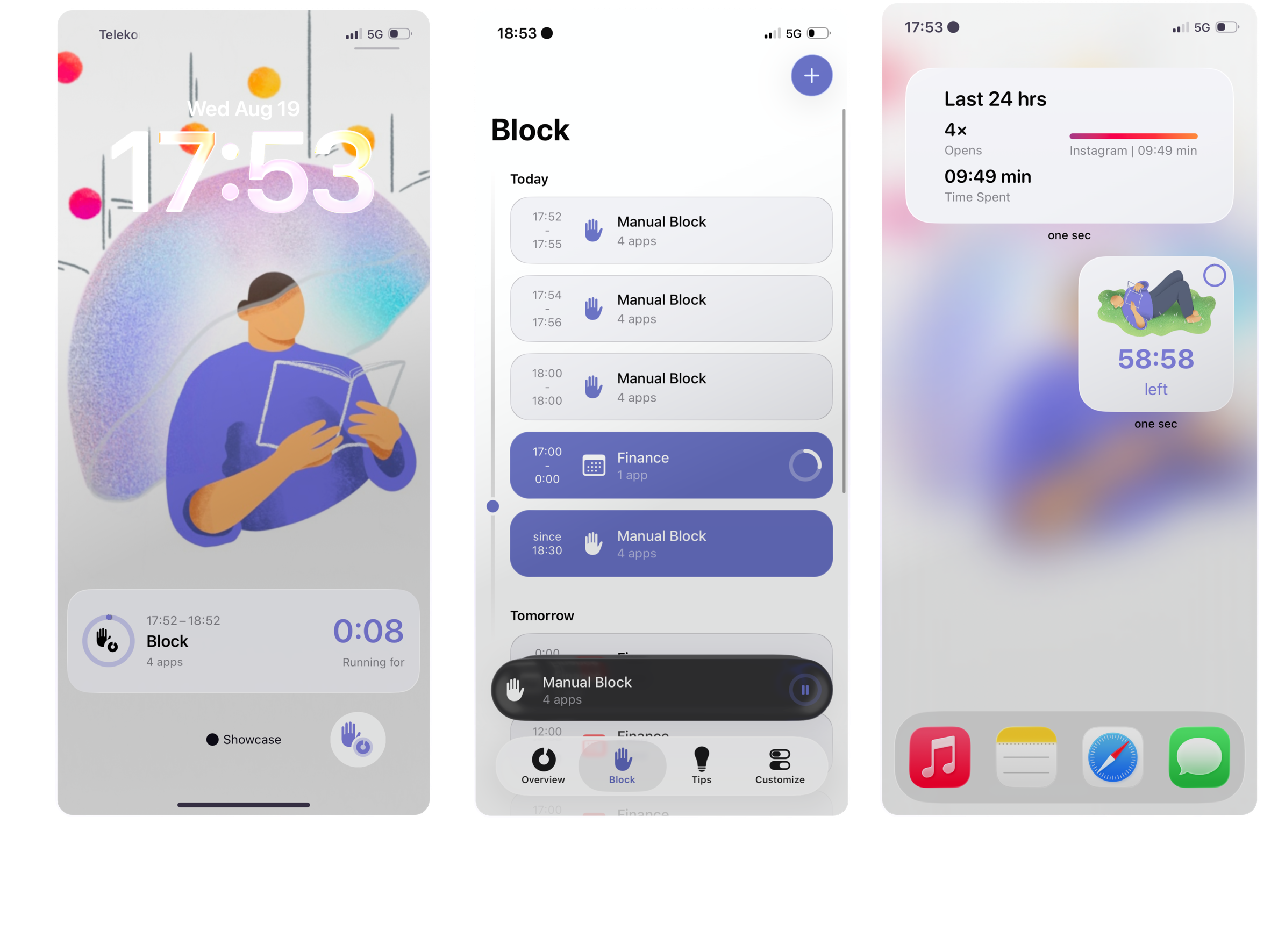
Active blocks will be visible on your Lockscreen as Live Activity.
In one sec they will be stacked over your Tab Bar. Also, If you navigate to the Block Tab you can see all your past, ongoing and coming blocks (manual, scheduled, focus filters) in a timeline for better overview.
Also your Block Session Widget will show the ongoing time as well .
Block Apps via Shortcut
For more advanced use-cases, you can also block apps via the one sec "⏳ Start Block Session" Shortcut in the Shortcuts app – to create your own customized Block Session Shortcuts and Automations.
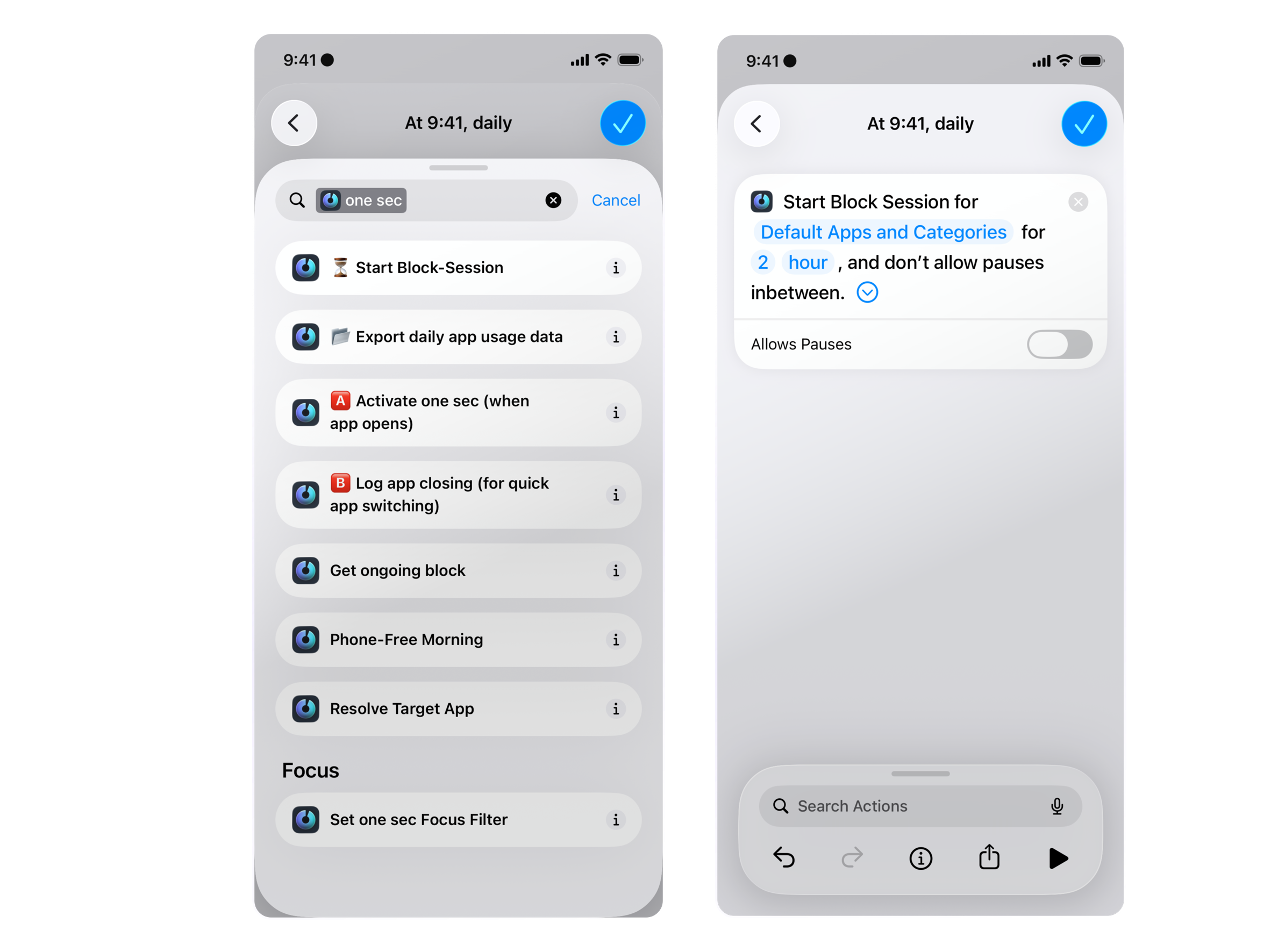
Feel free to get in touch, if you are interested in more tech savy approaches. Our customer support is always there for you to brainstorm with you and support you!
Block Apps on Android (Beta)
On Android, you can choose between two different ways to block apps:
Manual Blocks and
Recurring Blocks (Opt-In)
This tutorial is about how to start Manual Blocks.
Manual Blocks
To start a Manual block, open one sec
and navigate to the Block tab.
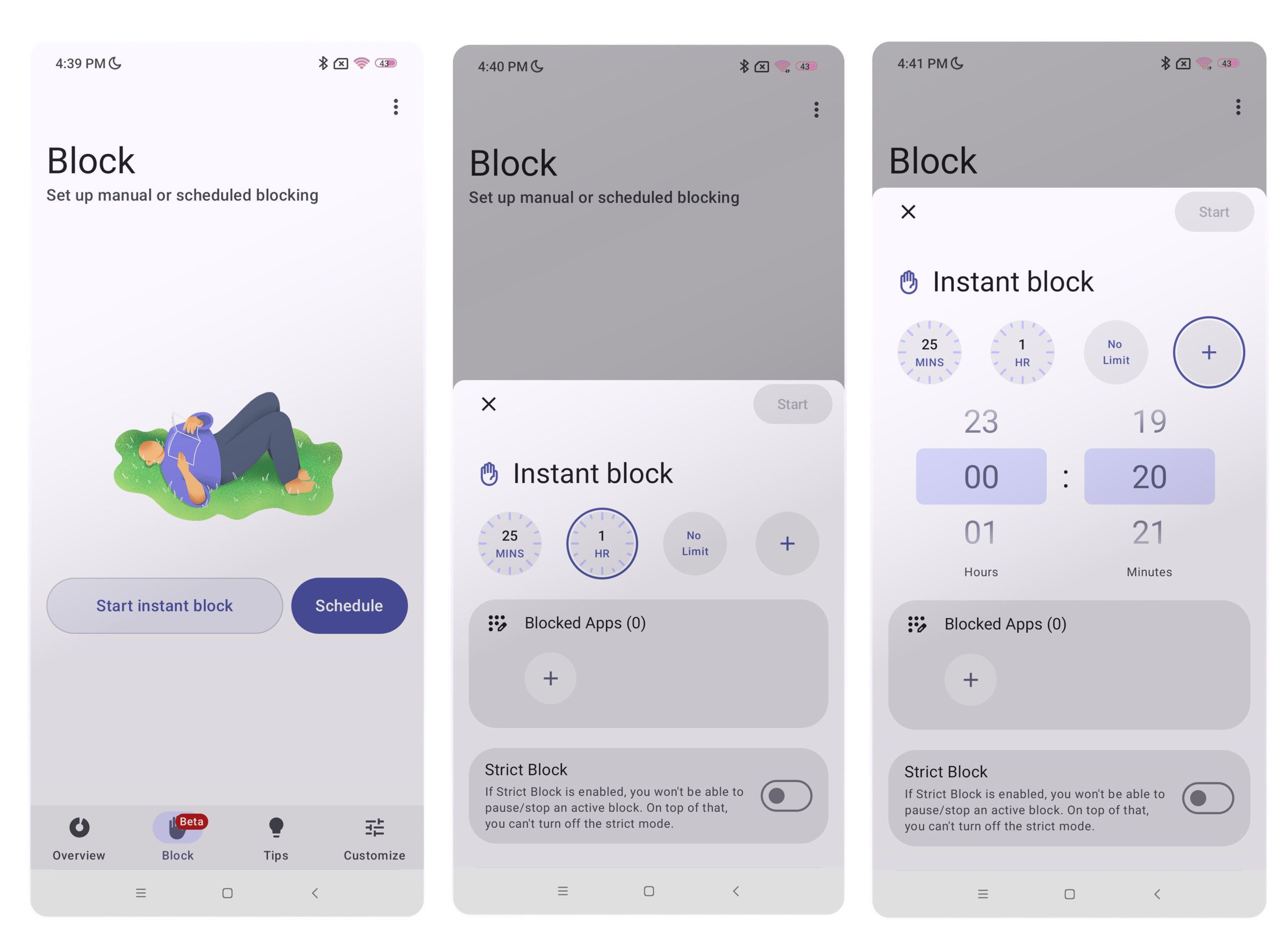
Tap the Start Instant Block / + in the down right corner and tap Instant Block.
Choose how long the block should be from the provided options (tap the + for a customizable time frame)
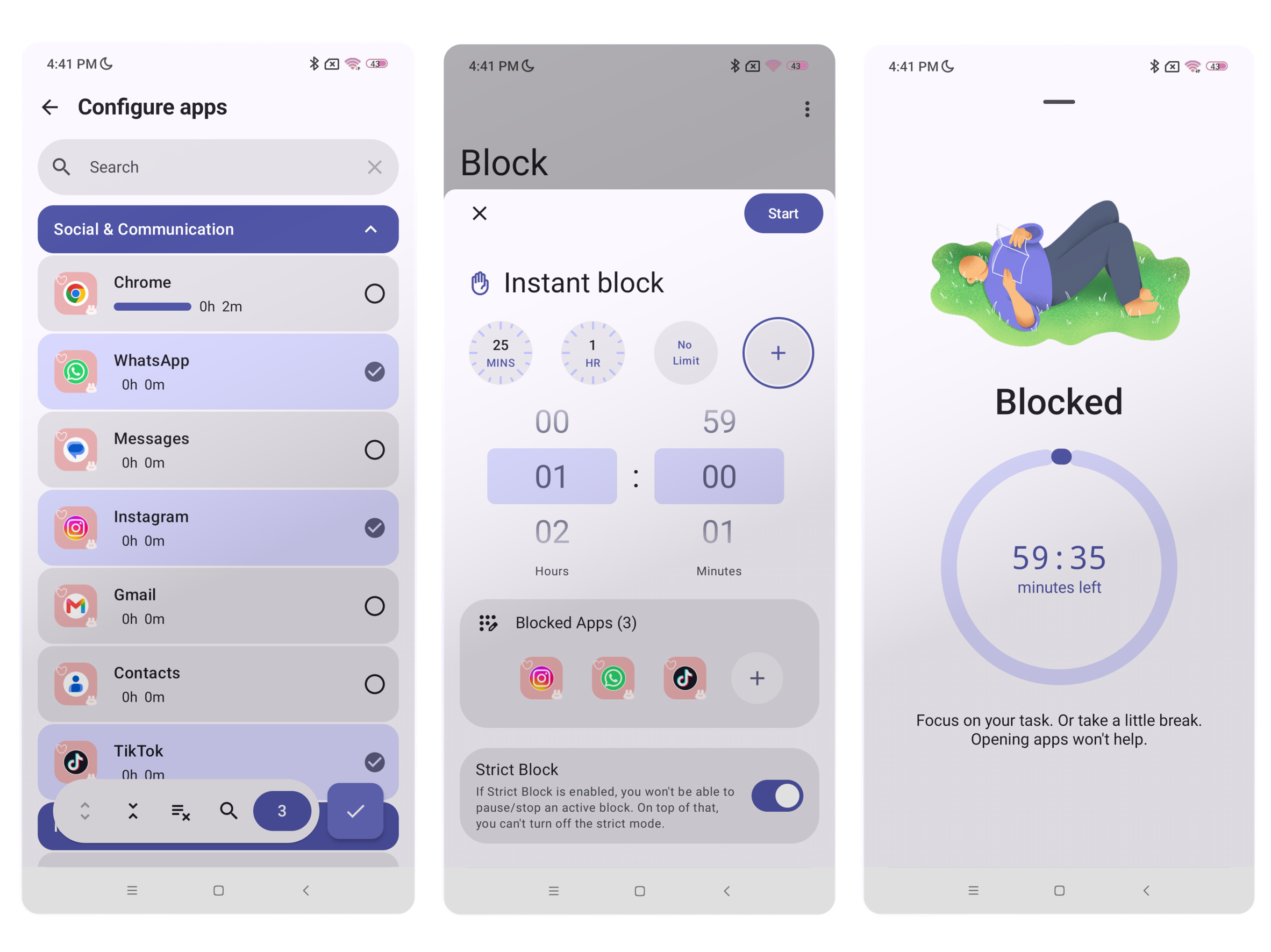
Choose which Apps you want to block and tap the checkmark to confirm.
Select by toggling on/ off if this should be a strict block or normal block: If strict mode is enabled you can't pause or leave the ongoing block before the time is over.
Tap Start.
Optional: If you are opted in, you can also create a Recurring Block from the Block Tab by tapping Schedule. (Scheduled Block)
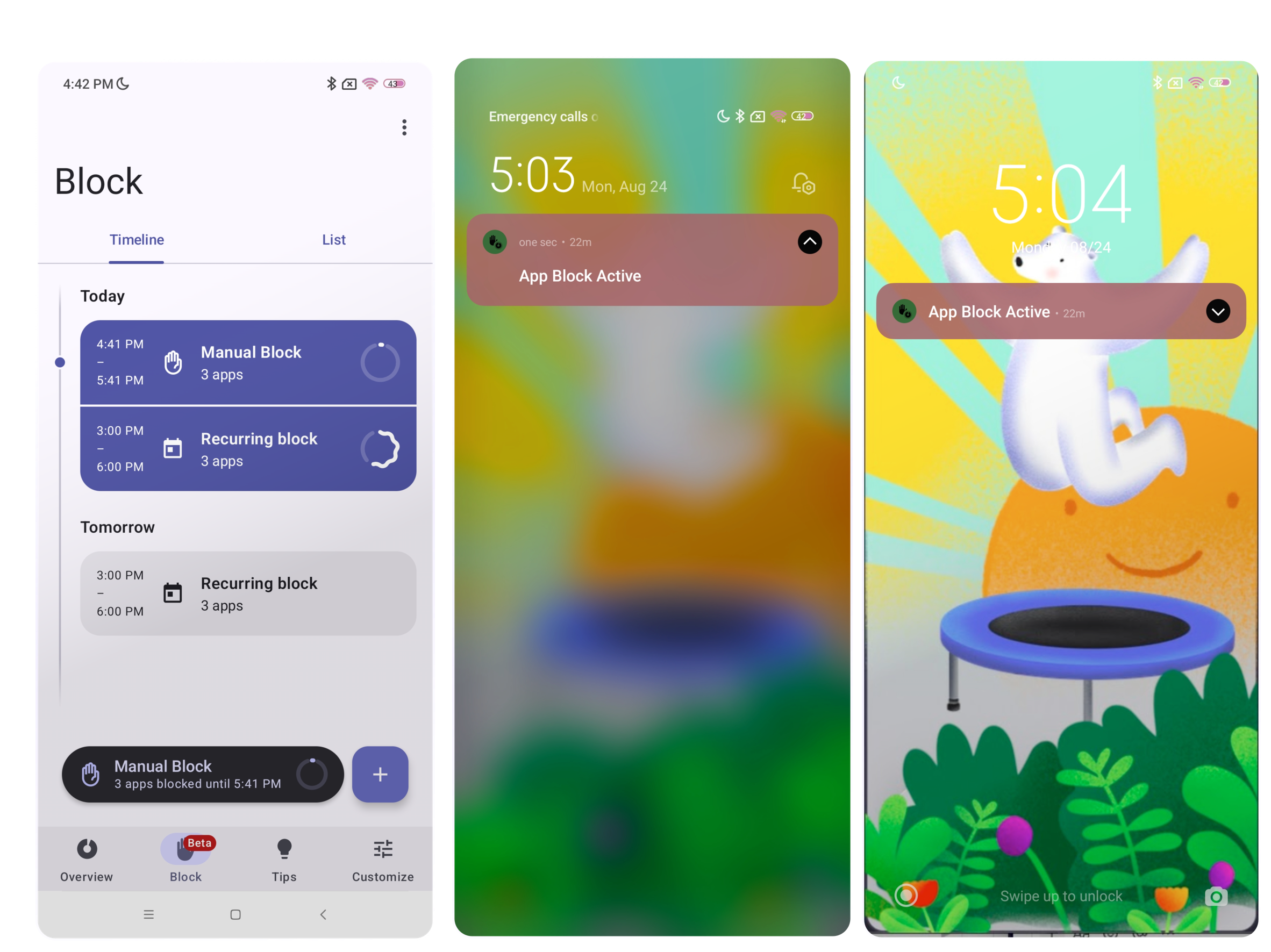
Block Overview
In the Block Tab you can choose between Timeline & List to see your past, ongoing and coming blocks (manual & recurring) for better overview.
Also: Active blocks will be stacked in one sec over your Tab Bar and are shown in your Notification Center and Lockscreen.
Need further help? Get in touch