How can I lock the Screen Time Permission?
During strict blocks, you might be tempted to turn off one sec’s Screen Time Permission to cheat – but no worries, there’s a solution so your long-term self can stop your short-term self from cheating during strict blocks:
To start, please make sure you have the latest iOS update of one sec installed (4.0.11 or newer).
Lock Screentime on iOS27+
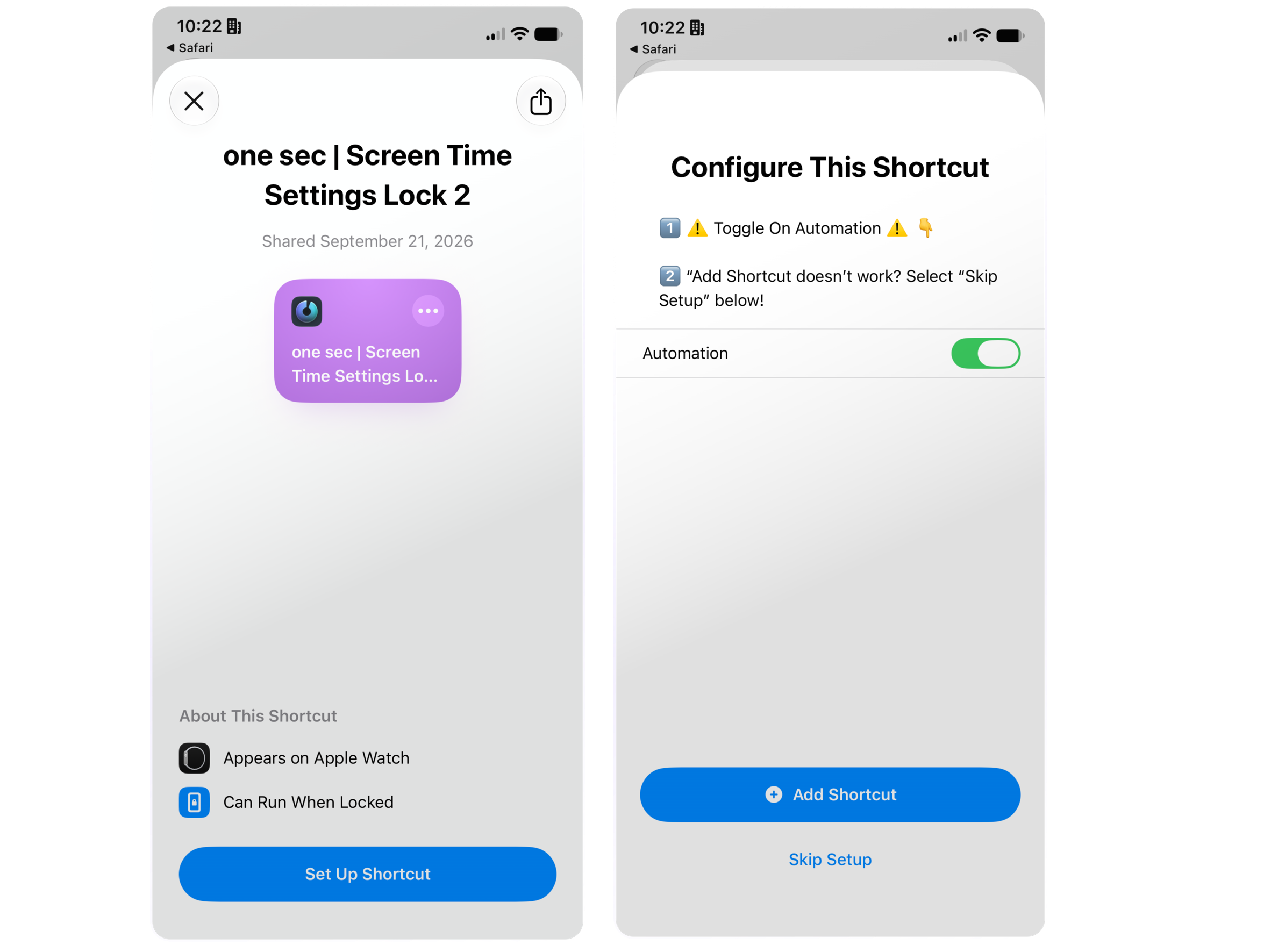
On iOS 27, you can just import this automation and follow the import dialog inside Shortcuts:
Don’t forget to ⚠️ Turn on the Automation inside the setup flow.
In case the Add Shortcut button doesn’t work in the last step, you can press on Skip Setup as a workaround. This is a known issue which we have reported to Apple early on during the beta cycle of iOS 27: FB24252363. However, until now, it has not been addressed.
Lock Screentime on iOS26
1. Add one sec’s “Lock Screen Time” Shortcut
Tap this link to download a new Shortcut and add it to the Shortcuts app.
2. Set up a new Automation
Open the Shortcuts app, and select the Automations tab.
Tap + to create a new Personal Automation.
Select Open App and choose the Settings app and Run Immediately.
Tap next and select the new Shortcut that you’ve downloaded in Step 1.
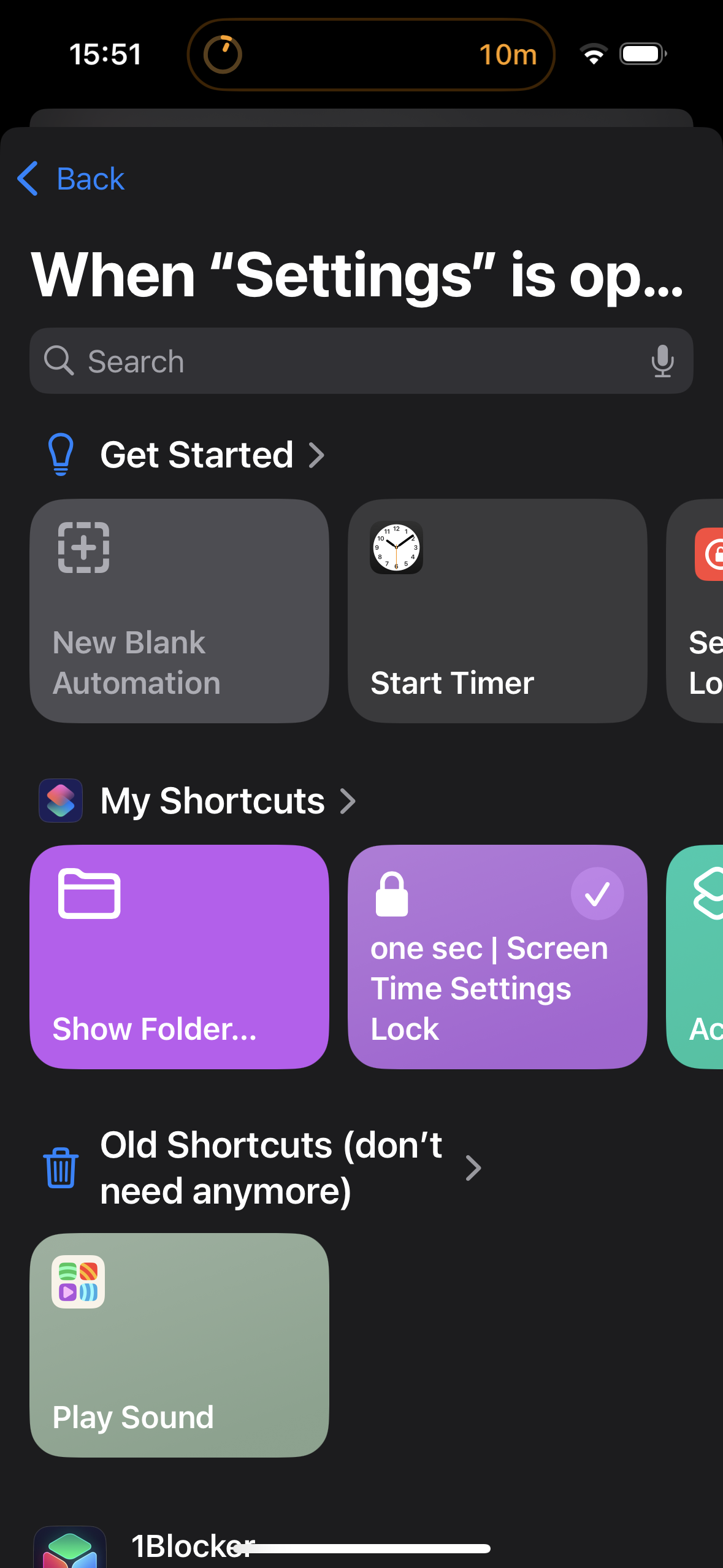
That’s already it! Now, during strict blocks, you’ll be forwarded into one sec whenever you try to access the Settings app.
Lock the Shortcuts App as well
If you’re afraid that you might delete the automation during a strict block, you can lock the Shortcuts app as well.