Intentional App Switching (iOS 26+)
This tutorial is for devices that aren't updated to iOS 27.
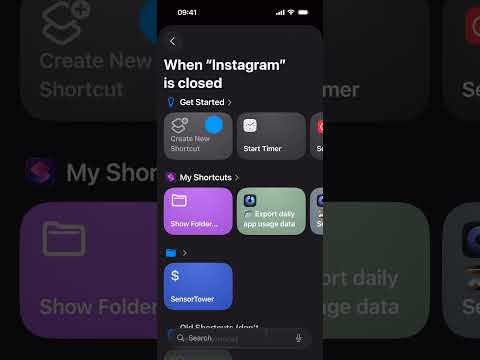
This video is hosted on YouTube and requires cookies to view.
YouTube Privacy PolicyStep 1
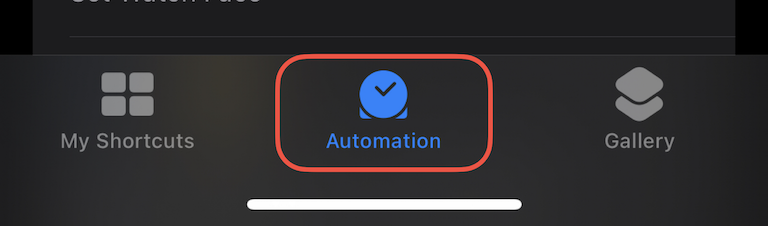
On your iPhone, open the Shortcuts app and go to the Automation tab.
Step 2
Go to the Automation tab and select + to create another Personal Automation.
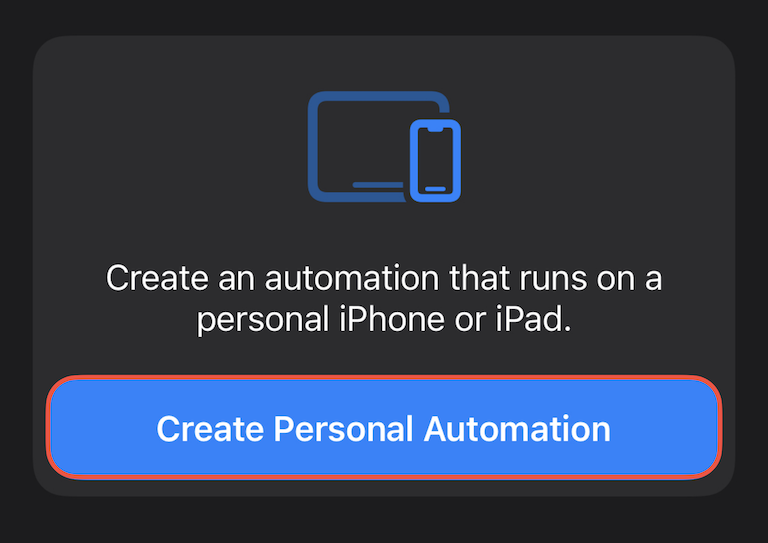
Step 3
Scroll down and select App.
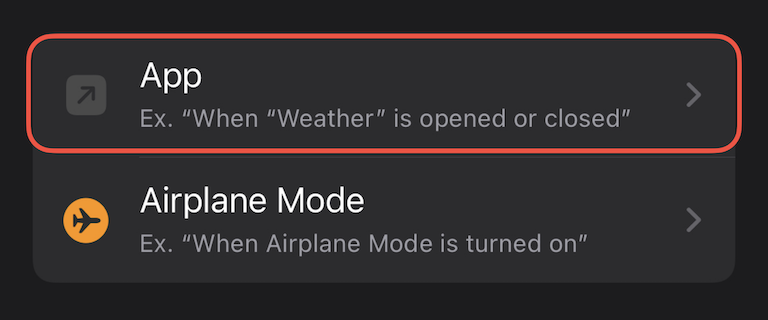
Step 4
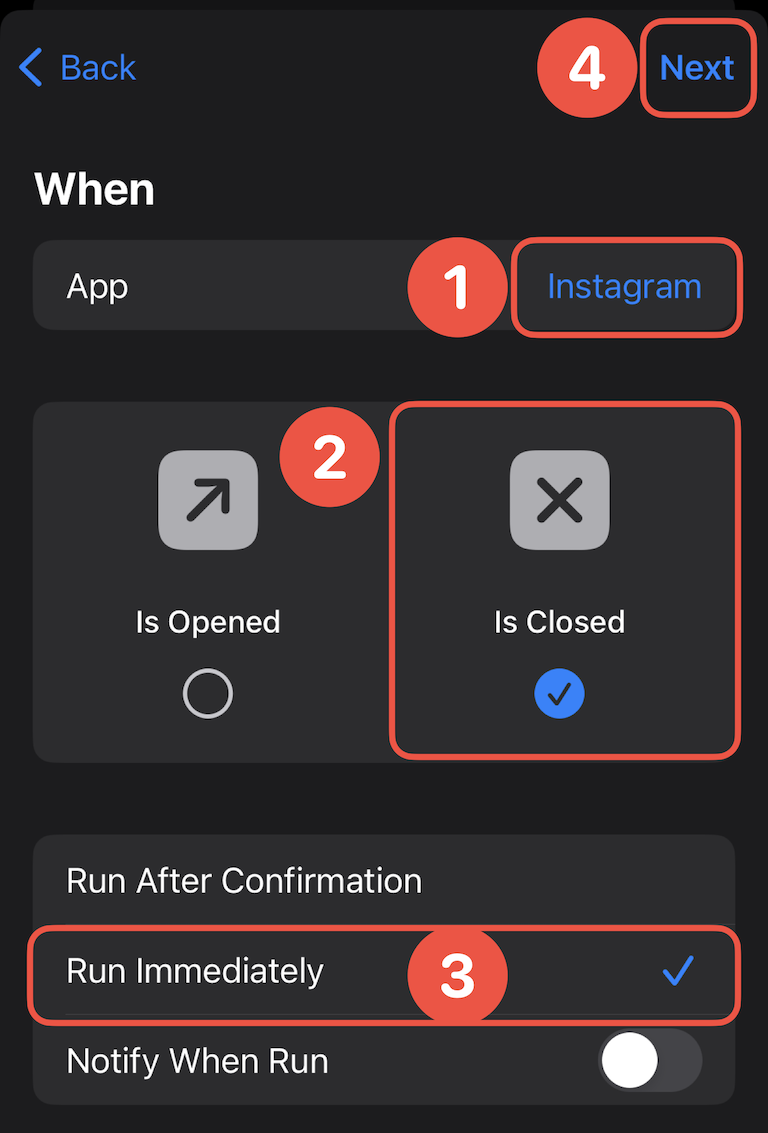
Choose the app you’d like to configure the intentional app switching for.
⚠️ Only select one app here. A separate automation is required for each app.
Be sure that only “Is Closed“ is selected.
At the bottom, select Run Immediately.
Then, continue to the next page.
Step 5
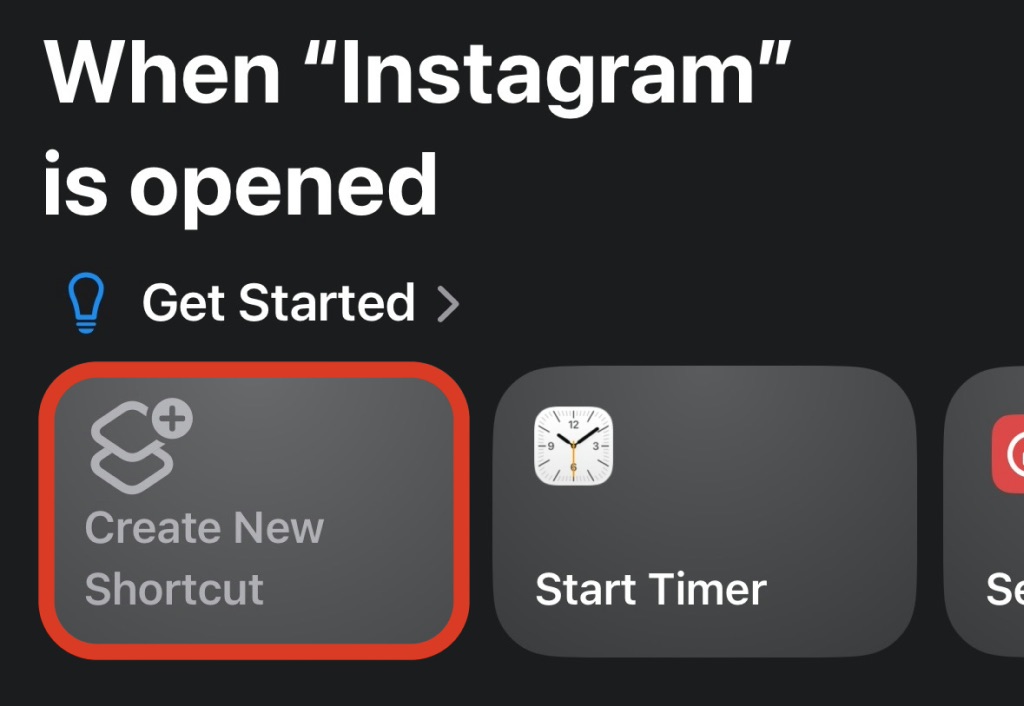
Select Create New Shortcut.
⚠️ If you don’t see this option, you’re running an older iOS version. Please refer to the old tutorial.
Step 6
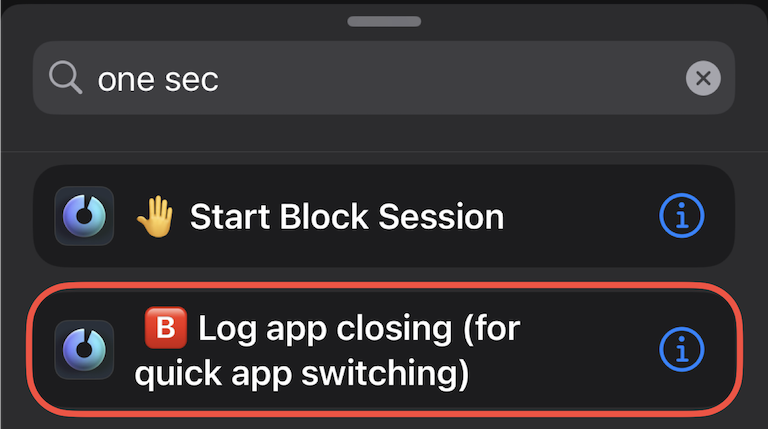
Search for “one sec” and select 🅱️ Log app closing (for quick app switching).
Step 7
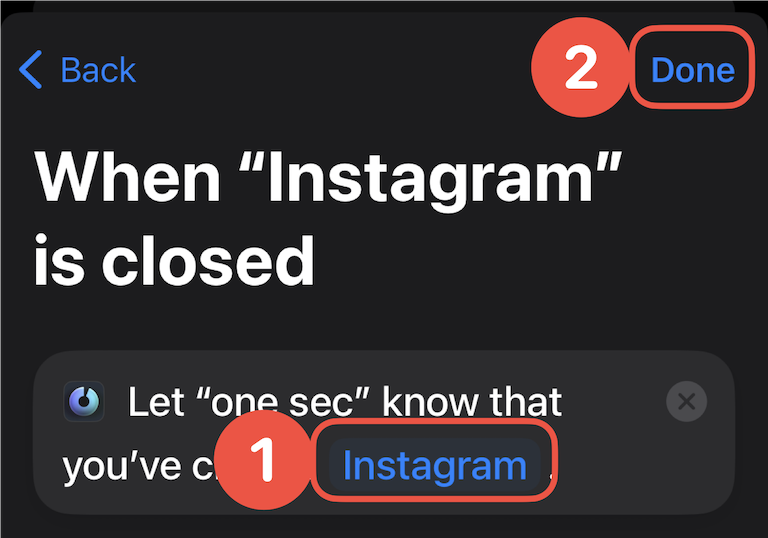
Tap App (must be selected⚠️) in order to re-select the previously selected app.
The Automation won’t run without this.
Then tap Done and you’re done!